Going Live
It’s not real until it’s on the internet.
You’ve built a vibe locally. Now you need to share it with the world. We use Vercel because it’s the specific partner for Next.js and makes deployment effortless.
The “Zero Config” Magic
Deploying used to involve buying servers and configuring Linux. With Vercel, it involves three clicks.
Prerequisite
Your code must be on GitHub (ask your Antigravity agent to “Push this to GitHub” if you haven’t yet).
Step 1: Create Account
Go to Vercel.com and “Continue with GitHub”.
Step 2: Import Project
- Click “Add New…” -> “Project”.
- You see a list of your GitHub repos. Find your app.
- Click “Import”.
Step 3: The Big Button
Vercel detects everything automatically.
- Framework: Next.js (Detected)
- Build Command:
next build(Detected)
Just click Deploy.
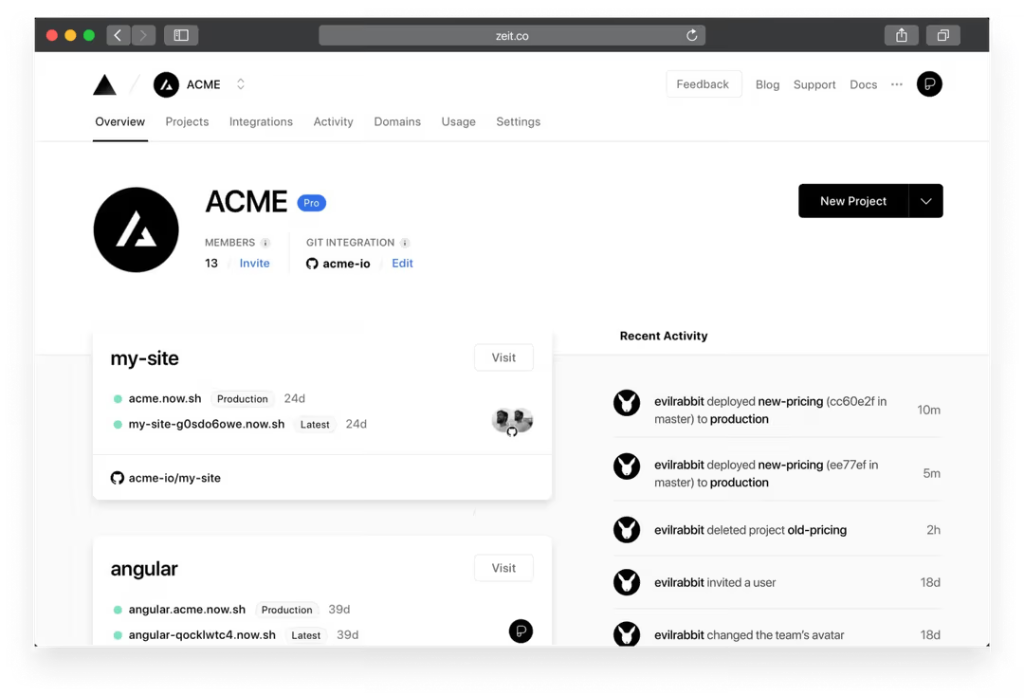
The Vercel Dashboard: Where your vibe lives.
Environment Variables (The Key Locker)
If your app uses API keys (like OpenAI, Supabase, or Stripe), the build might fail. This is normal!
The Metaphor: Your code is like a car. Your API keys are the keys to the car. You don’t leave the keys in the car when you park it in public (GitHub). You keep them in your pocket.
How to fix it:
- On Vercel, go to Settings -> Environment Variables.
- Copy the same names you have in your
.env.localfile. - Paste the values.
- Redeploy.
Custom Domains
By default, you get your-project.vercel.app.
To get yourname.com:
- Buy the domain (GoDaddy, Namecheap, or on Vercel).
- In Vercel: Settings -> Domains.
- Type your domain.
- Vercel will tell you exactly what DNS records to add.
Wait 15 minutes, and you’re professional.